Connect email and calendar
Let kaylin read and draft your email and check your calendar.
Each person connects their own account. Only you can connect yours, and you can disconnect at any time.
- 1Go to Integrations.
- 2Press Connect Google, Connect Microsoft or Connect Zoho.
- 3Sign in and allow access.
If kaylin loses access, the card asks you to Reconnect, and you get a notification.
What kaylin may do
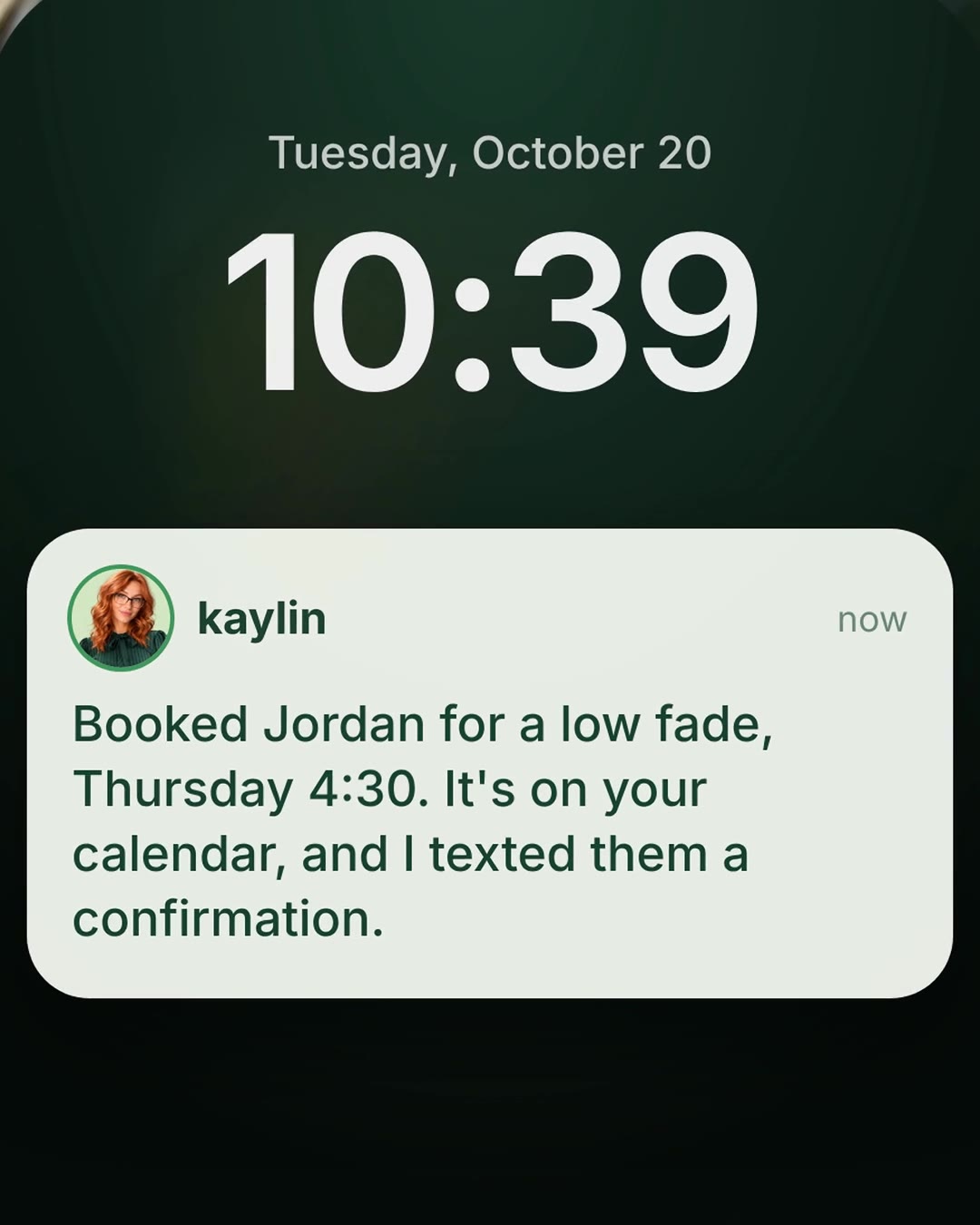
When you ask kaylin to send an email or add a meeting, it's done right away and the card shows what the app did. Reading email and saving drafts never needs approval.
To send from another of your addresses, like support@, ask for it. kaylin uses it only when your email account already lists that address; otherwise emails go from your own address.
Ask kaylin in Chat to move emails to the trash and it does: they go to your mailbox's own trash, never deleted for good, and the card has Undo.
The switches under Available tools on your connected account, Emails kaylin writes and Meetings kaylin lines up, are for what kaylin does on its own, in autopilots. On: kaylin does it by itself. Off: kaylin checks with you before doing it on its own; it waits on Waiting for you. Each person sets their own, for their own accounts. On an account you share with the team, your switches hold for teammates' autopilots too: what you've switched Off waits for you, or an owner or admin, under Asked of you.
The switch by the account's name turns it on or off. Off, kaylin doesn't use it at all (its email, calendar and books, and autopilots that watch its email); it stays connected, so turning it back on needs no new sign-in. When an owner or admin switches someone's account off, only an owner or admin can switch it back on.
Share an account with the team
An account the whole team uses, like the office email or the booking calendar, can be shared. Then anyone in the workspace can ask kaylin to use it: its email, calendar and Zoho Books, as you connected them. Everyone's own accounts come first.
- 1Go to Integrations.
- 2Under your connected account, set Available to to Entire workspace.
Only share an account the team already uses. The person who connected it, or an owner or admin, can share it, and owners and admins can stop sharing any account. Teammates see Shared with you on that card, and Shared by with whose it is. Each change shows in Settings → Activity.
Related guides
- Booking appointmentsLet kaylin offer open times and book callers onto your calendar.
- Zoho Books: invoices and paymentsLet kaylin look up customers and invoices, send invoices and record payments.
- Chat with kaylinAsk kaylin anything about your calls, contacts and business, and have kaylin draft or do things.
- AutopilotWork kaylin does on its own, after something happens or on a schedule.